When you assign a task, if you fill in multiple recipients and click “Send”, you will receive a warning telling that the task sent to many persons will not be updated. Thus, if you want to get task updates in time, you’d better assign the task to many recipients separately.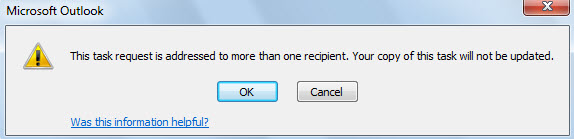
Of course, aside from the consideration of task update, due to confidentiality, you need to send a task to multiple persons separately. Generally, you have to create separate tasks, add recipient and send one by one. It is obviously troublesome. So, in the followings, we will introduce you a much more efficient way.
Batch Assign a Task to Multiple Persons Separately
- For a start, press “Alt + F11” to access Outlook VBA editor.
- Next, in the “Microsoft Visual Basic for Applications” window, copy the VBA code into a blank module or project.
Sub AssignTaskToMultipleContactsSeparately()
    Dim objCurrentTask As Outlook.TaskItem
    Dim objRecipients As Outlook.Recipients
    Dim objRecipient As Outlook.Recipient
    Dim objCopiedTask As Outlook.TaskItem
    Dim i As Long
    Dim strRecipientName As String

    Set objCurrentTask = Outlook.Application.ActiveInspector.CurrentItem

    If Not objCurrentTask Is Nothing Then
       Set objRecipients = objCurrentTask.Recipients

       For Each objRecipient In objRecipients
           Set objCopiedTask = objCurrentTask.Copy

           For i = objCopiedTask.Recipients.Count To 1 Step -1
               objCopiedTask.Recipients.Remove (i)
           Next

           strRecipientName = Split(objRecipient.Address, "@")(0)
           strRecipientName = UCase(Left(strRecipientName, 1)) & Right(strRecipientName, Len(strRecipientName) - 1)

           With objCopiedTask
                .Recipients.Add (objRecipient.Address)
                .Recipients.ResolveAll
                .Subject = .Subject & " (" & strRecipientName & ")"
                .Assign
                .Send
          End With
        Next

        objCurrentTask.Close olDiscard
    End If
End Sub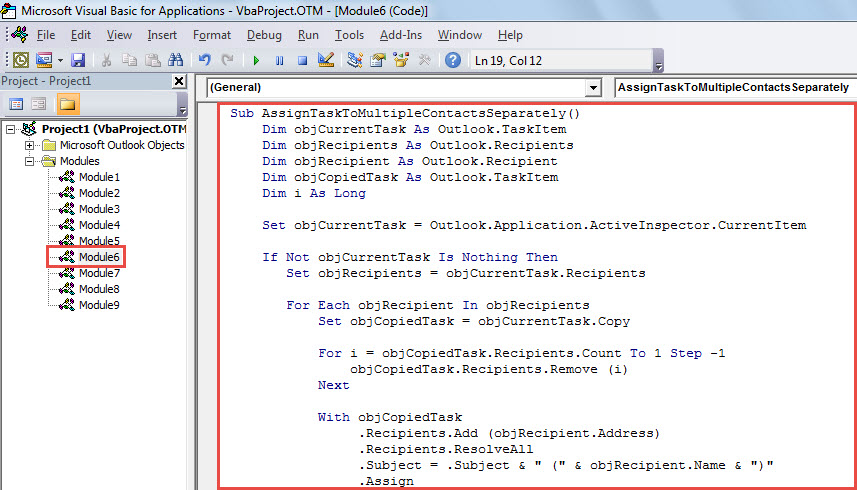
- Subsequently, add this macro to the ribbon of Task window by referring to “Optional Step” in the post – “How to Run VBA Code in Your Outlook“.
- Eventually, take the following steps to try this macro.
- Firstly, create a new task and add the recipients at will.
- Then, click the macro button in ribbon.
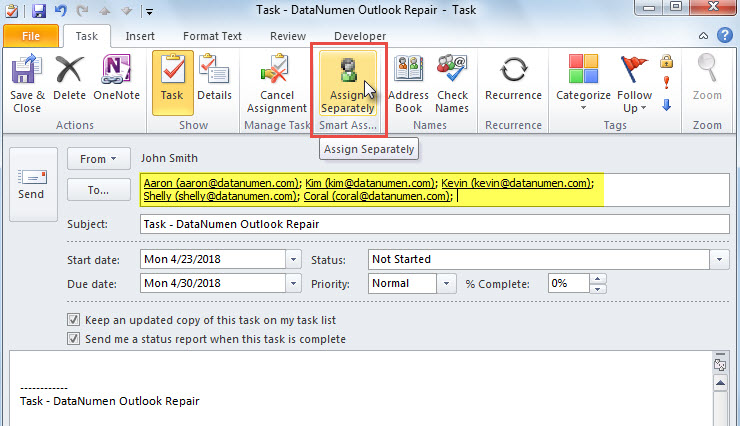
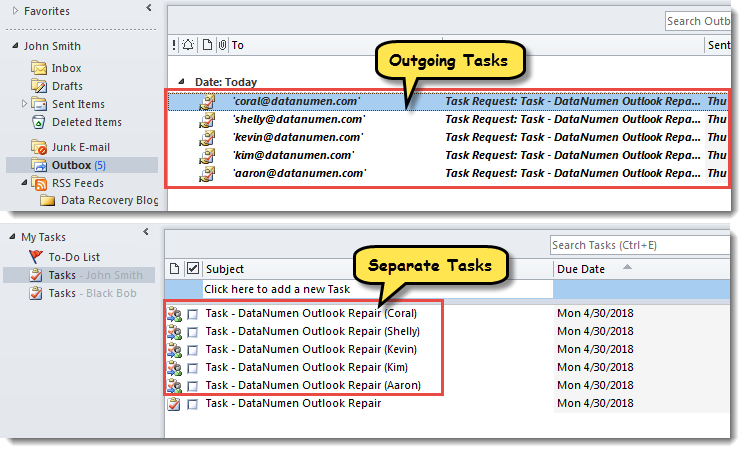
- At once, the current task will be assigned to the recipients separately, as shown in the following screenshot.

No comments:
Post a Comment